A Small Star in a Quiet Window: A Free Image-to-Video Generator, No Signup Required
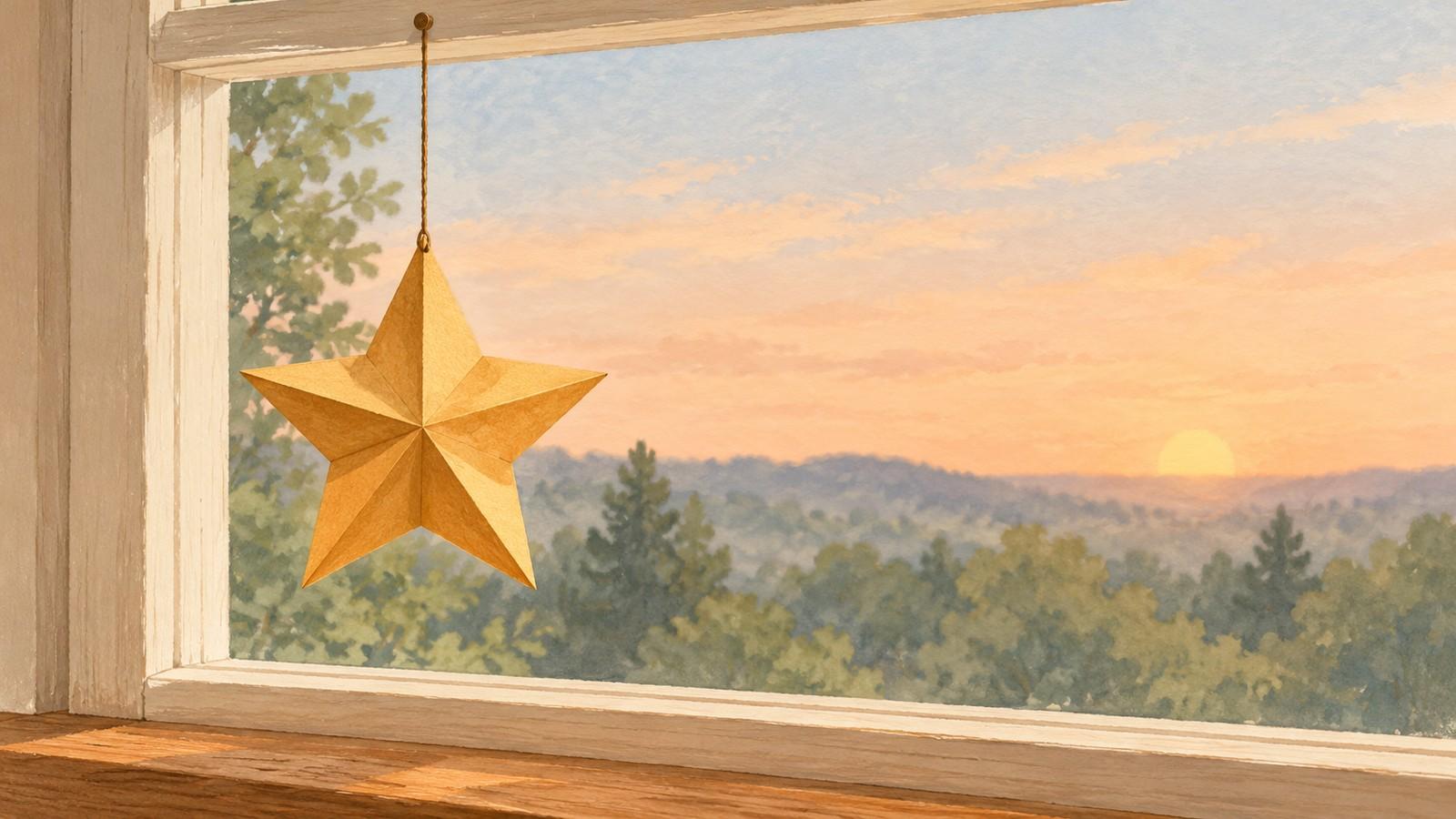
A folded paper star in a window has a useful kind of simplicity: one recognizable shape, one hanging point and a quiet background. A slight swing could turn that still scene into a five-second pause in a creative update, without needing a bigger story around it.
For someone looking for a “free image to video generator no signup required,” this is a manageable idea to plan. Start with the motion you want to preserve: the star and its string move together, while the window stays still.
The illustrations here are AI-assisted planning examples. They do not document a personal craft session or a completed animation.
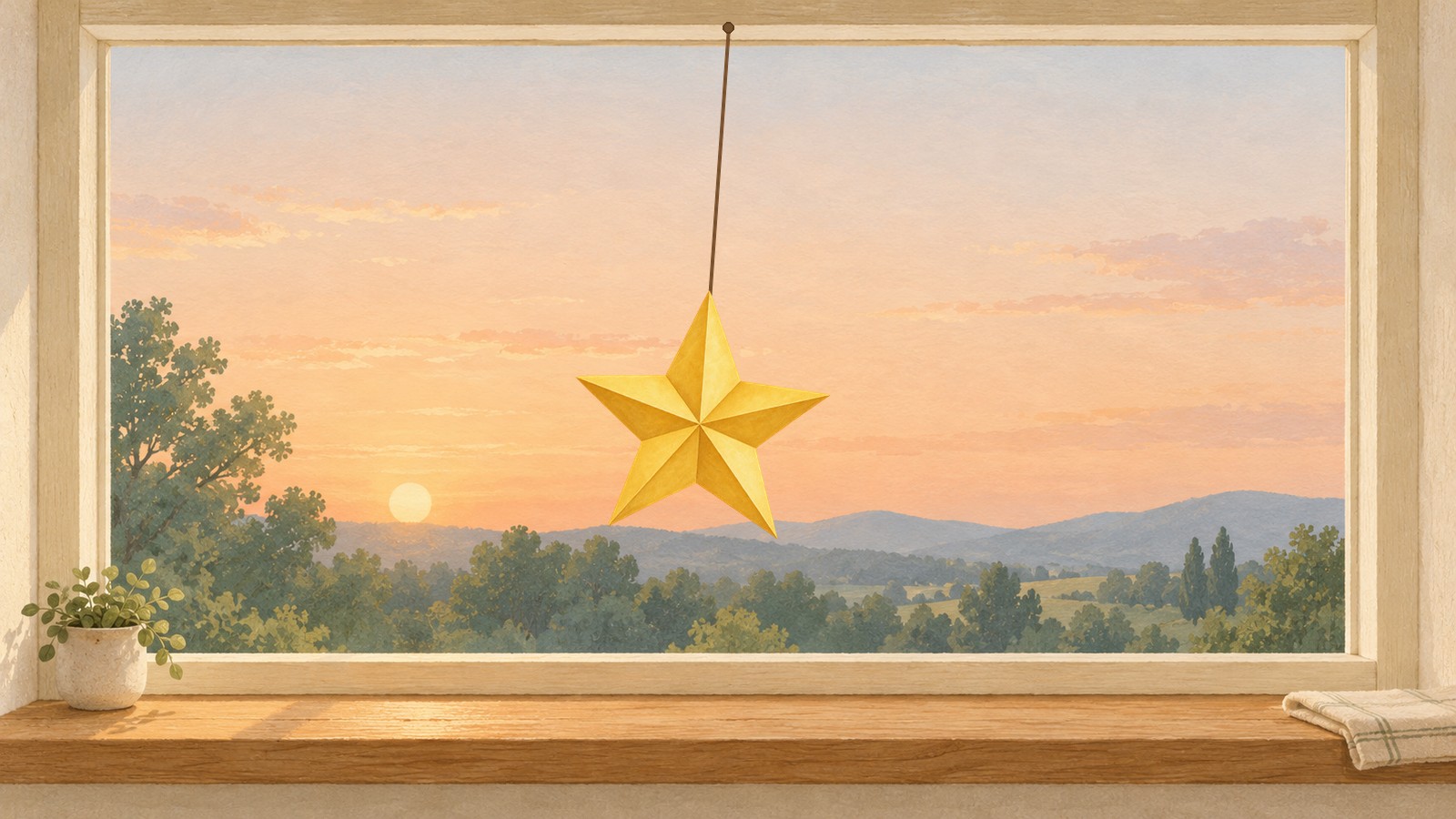
How do you animate a paper-star photo?
Begin with an original image or artwork you have permission to animate. A photograph should show the whole star, its connection to the string and the attachment above it. A clear background makes small changes easier to judge. Avoid cutting off a star tip or letting the cord disappear into a bright reflection.
This example uses an invented window illustration. Its gentle movement is one pass from slightly left of center to slightly right. The star does not spin around its cord, change size or complete a full back-and-forth cycle. That limited action suits a short scene; it does not promise a seamless loop.
For a photo to video idea, a layered source can help. Separate the star and string from the background in an image editor, repairing the area behind them if needed. That preparation is separate from video generation. If you cannot make a clean separation, choose a simpler image rather than relying on a prompt to hide broken edges.
Prepare matching first and last frame images
Keep the complete string and star on one layer, with the upper end of the string as the pivot. Duplicate the composition. Rotate that layer a few degrees to the left in the first image and the same small amount to the right in the last. The attachment stays at exactly the same point; the lower end of the cord and the star travel together along a shallow arc.
In this planning example, the endpoints sit four degrees either side of vertical. The midpoint is vertical. The star's shape and scale stay unchanged, and the window, sill and outside view reuse the same background. Small angles keep the intended action easy to read.
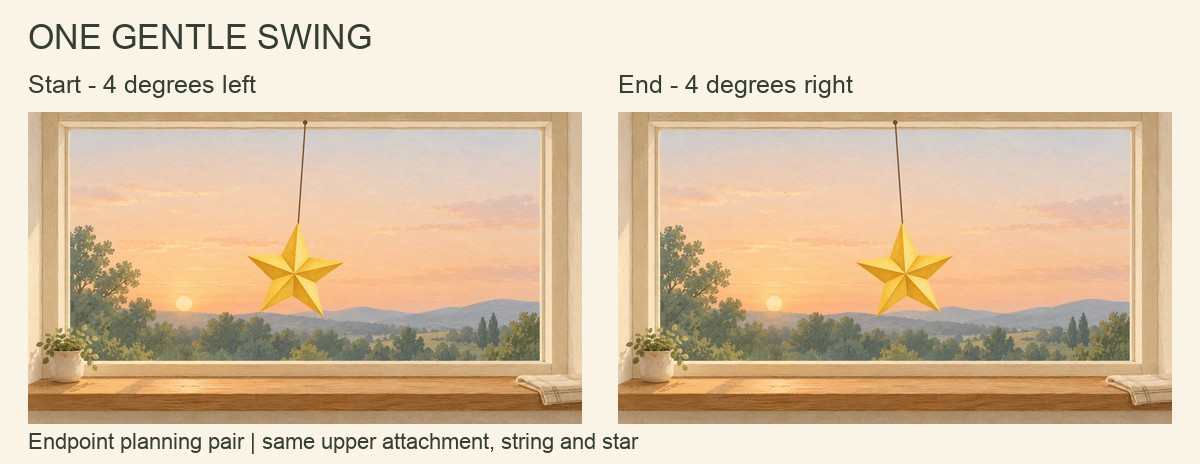
The pair above is a teaching comparison with labels. Prepare two separate, clean, full-scene endpoint files for a frame-guided workflow. Both should use the same dimensions and framing. Leave room for every star tip throughout the swing, and keep message lettering out of the inputs.
Choose an output aspect ratio that fits those files. This scene is 16:9. If you need a square or portrait version, recompose both endpoints consistently instead of stretching the star or trimming one endpoint differently.
A prompt for a gently swaying ornament
The most useful image to video prompts describe one action and name what should remain steady. Here is a starting version:
Over five seconds, the single paper star and its connected string swing slowly once from the slightly left position in the first image to the slightly right position in the last image. Rotate them together around the fixed upper attachment. Keep the string connected and the star's folds, five tips, size and color consistent. Keep the camera, window frame, sill and outside view still. No spinning, extra ornaments or text.
One optional route is VO4 AI’s free image to video generator. As checked on October 16, 2026, its page describes a free five-second, 480p option at zero credits. The frame-guided route takes ordered first and last images plus a prompt; its text-only branch is a separate route. No account signup is required, but verification is still needed. The page's unlimited attempts describe cumulative tries, which may queue. Its form offers 16:9, 9:16 and 1:1 output. The shorthand “powered by minimax h3” refers here to the page's MiniMax H3 label, not independent verification of the underlying model. Recheck current conditions before trying it.
This AI-assisted guide presents a creative planning example from a sharing blogger’s perspective. The example video has not been generated.
How can you keep the background still?
Use matching endpoints and a locked-camera instruction to express that intent, then inspect the result. Neither the prompt nor identical scenery in the inputs guarantees a stable background in an AI video.
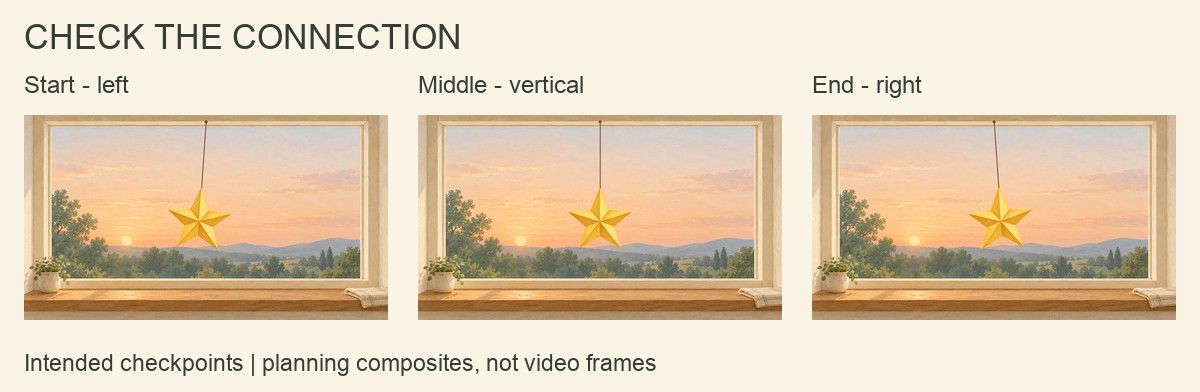
If you generate a clip, pause near the start, middle and end. Check the upper attachment first: it should not slide along the frame. Follow the cord down to the star; watch for gaps, doubled strings or a tip that seems detached. Then compare all five points and the fold lines. A small swing should not turn the ornament into a different shape.
Finally, compare the window's straight edges and the outside silhouettes. Wobbling woodwork or drifting scenery can overwhelm subtle motion animation. Try a smaller angle if needed. If exact geometry matters more than generative variation, keyframing the connected layer in a conventional editor is a more controllable option.
Keep the still illustration as a fallback. Any words or sharing caption can be added separately after selecting a usable clip, with a final check for legibility and framing. The idea is small enough to stand on its own: a quiet window, a paper star and one gentle swing.