Let the Snow Fall a Little Longer in That Photo — A Free Image-to-Video Generator, No Signup Required
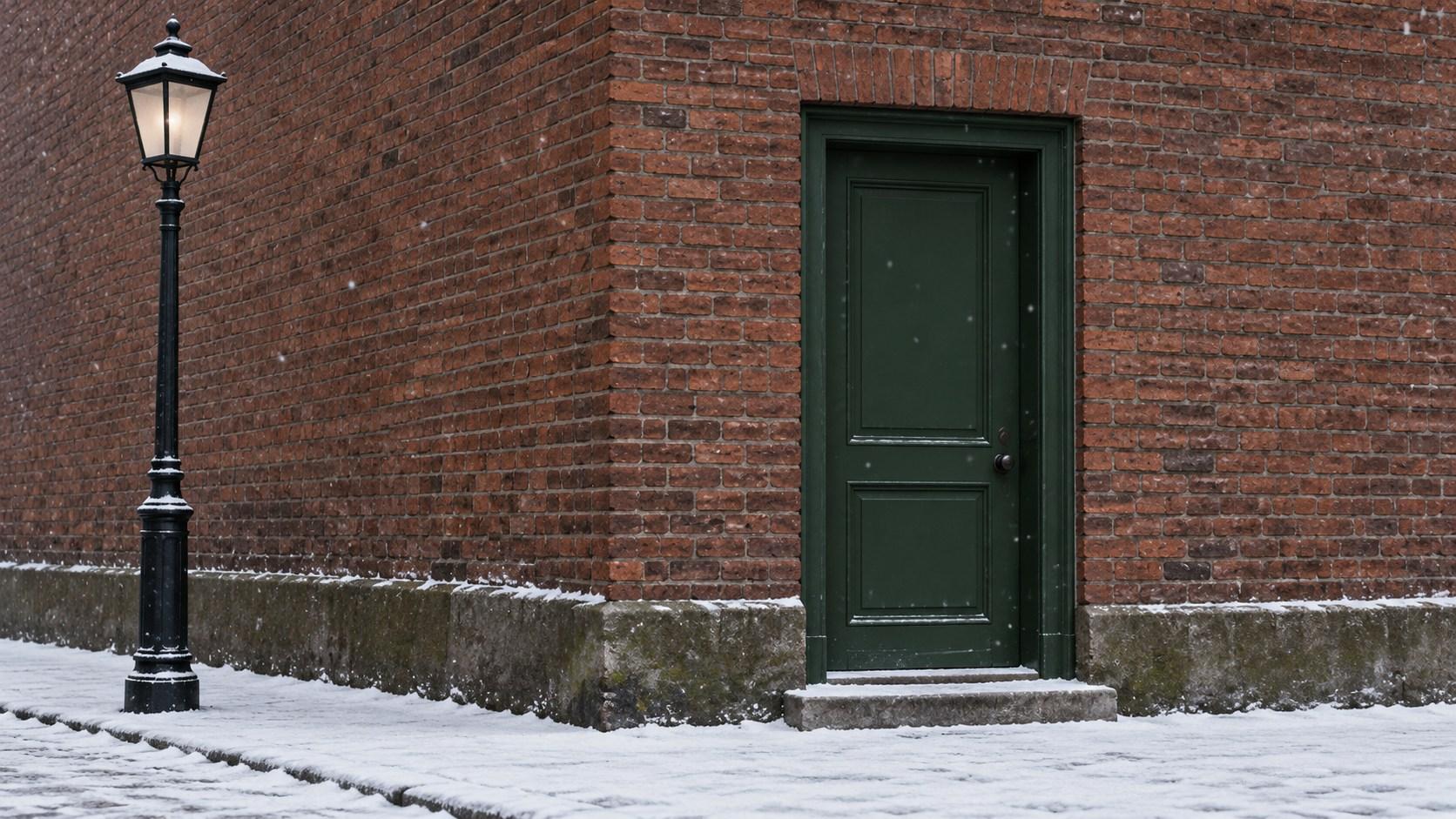
Imagine opening a snowy photograph and wanting to stay with it for another moment. The interesting part might be ordinary: a dark doorway, a lamp beside a brick wall, a little snow resting on the step. A few falling flakes could give that stillness a small movement.
Start with that one idea. Keep the street fixed and let only a sparse scattering of snow fall. The result can sit beside the photograph as a creative interpretation.
This guide uses an invented street corner and AI-created teaching images. It describes a plan to adapt, not a real location, personal winter memory or tested video result.
Choose the part of the photograph you want to keep
Use a photograph you own or have permission to upload, edit and share. Save the original untouched. Look for clear edges you can recognise later: the doorframe, a line of bricks, a lamppost and the edge of the pavement.
A darker background makes small white flakes easier to see. Choose a scene with room for them, rather than one already hidden by dense snowfall. For our example, the green door and brick wall provide that contrast. The snow lying on the ground stays as it is.
Leave people, passing vehicles and other moving subjects out of this first attempt. One modest movement gives you a clearer idea of what to ask for and what to inspect.
Prepare the beginning and ending before uploading
This method uses two separate finished images: a first frame and an end frame. Both need the same camera position, crop, dimensions, light and street geometry.
If you have several photographs taken without moving the camera, choose a near-identical pair with only a small change in the falling flakes. Reject a pair where the door shifts, the camera tilts or the settled snow changes noticeably.
With one photograph, you can prepare edited working copies. For a controlled pair, put a few small flake marks on a separate layer over an unchanged background, then duplicate the composition and move only that layer slightly downward for the ending. If you need to isolate existing flakes first, repair only their old positions on a working copy. Avoid dragging or repainting parts of the building along with them. Keep the original file separate.
Name the outputs first-frame and end-frame. Switch between them before uploading: the flakes should change position while the street stays put.

AI-created endpoint planning illustration: keep the street in place and change only a few airborne flakes. Prepare two separate scene files without these labels, borders or reading-order arrow.
Use each scene as its own input, without the comparison sheet's labels or arrow. You are designing a little snowfall, rather than reconstructing what happened after the photograph was taken.
Give the flakes a direction, and the street a boundary
Useful motion prompts describe what changes and what stays still. Try:
Fixed camera. A sparse scattering of small snowflakes falls slowly downward toward the positions in the final image. Preserve the same brick corner, dark-green door, lamppost, settled snow and soft light. Keep every building edge and the background still. No new people, vehicles, objects, heavy snowstorm or camera movement.
Adapt the objects to your photograph. If your endpoint shows flakes lower down, keep the motion downward; avoid also requesting a swirling wind or a moving camera.
Two useful corrections keep the idea small:
If the flakes become huge or the scene turns into a blizzard, reduce their number in the endpoint and specify “a few small flakes, with the background clearly visible.”
If the camera drifts or the doorway bends, compare your frame alignment first. Correct any mismatch, then ask for “unchanged doorframe, brick lines, lamp position and framing.”
New people, extra objects or growing piles of snow are reasons to revise the result. Change one instruction at a time.

Plan the falling flakes separately from the still scene, then add your own words afterwards. AI-created teaching diagram, not a generated-video result or a record of real weather.
Keep the original beside the moving version
Tool suggestion: OpenMaker is one option for making the short animation in this example.
On OpenMaker, upload the first image followed by the end image, add the motion prompt, and select the matching aspect ratio. Generate, preview, and download a version to consider.
As checked on 20 October 2026, its free route describes five-second, 480p clips, no signup, zero generation credits and unlimited generations. OpenMaker presents the linked free workflow as powered by MiniMax H3; that is its published service description. The H3 page also notes possible queues, so leave time to review the result.
Watch once for the falling snow, then pause at the beginning, middle and end. Compare the doorframe, lamp, brick edges and snow-covered step with the original. A gentle fall is only useful here if the place remains recognisable.
Put the original photo beside the animation and identify the latter as an AI creative interpretation, not recovered footage. Add a genuine note separately, after generation. The photograph holds what you recorded; the few seconds of movement hold what you chose to imagine.