Two Palettes, One Picture: A Free Image-to-Video Colour Comparison
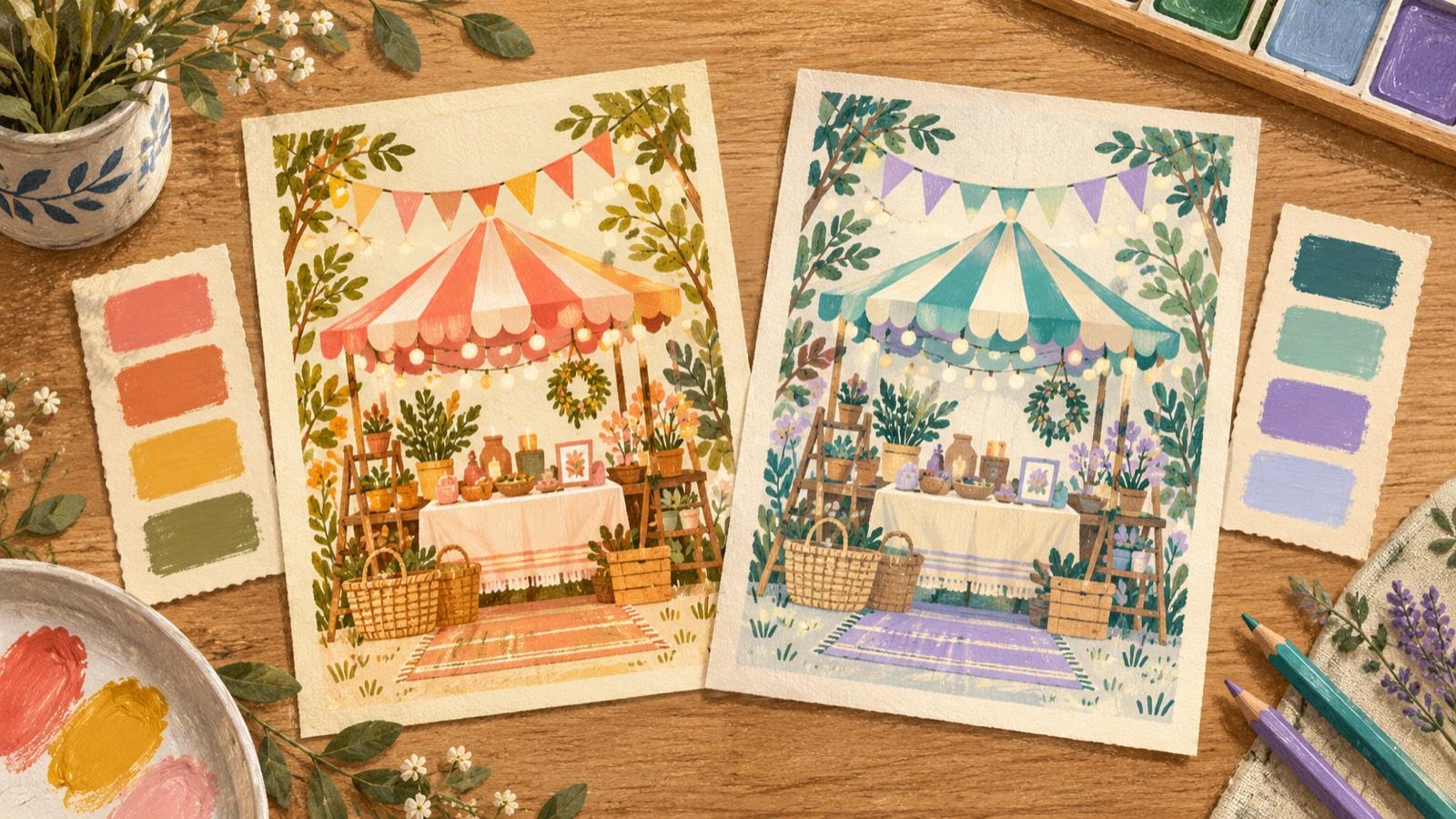
A coral canopy makes this imaginary craft stall feel sunny and busy. Change its colours to cyan and blue, and the very same stall suggests a cooler, quieter afternoon. Which version suits the market you want to describe?
That is a useful question for a design-process post. “Which animation looks impressive?” is a different question, and can distract from it. A free image-to-video transition can help readers follow the change, but the two finished stills should carry the decision.
This example uses an original AI illustration and an externally prepared recolour. The diagrams explain a proposed workflow; they do not show a completed HeyDream video or announce a real market.
Give the comparison one job
Imagine a small indoor market selling paper ornaments, cards and woven goods. The poster should suggest a relaxed afternoon of browsing. Ask: does the warm or cool palette better support that mood while keeping the stall easy to read?
Describe what you actually see. In A, mustard ornaments echo the lower tablecloth. In B, the brighter cyan canopy sits above deeper blue accents. You can prefer either relationship without claiming that one will sell more tickets.
Put both versions beside each other at equal size. Look away, then return: where does your attention settle? Make a short note before adding movement. That sentence is the useful part of the process post.

Original AI illustration with an externally prepared colour-only variant. The two static palettes are the decision references; no generated video is shown.
Change colour without changing the drawing
Duplicate one master illustration in an external image editor. Recolour the duplicate through adjustment layers or selected fills. Keep the canvas, crop, outlines and object positions identical. Generating a second picture from the same description could quietly change a flag or ornament and muddle the comparison.
Here, B was made by a deterministic colour transformation of A, with no spatial resampling. It is a broad cool alternative, rather than a carefully tuned final brand palette. The matching detail crops below come from exactly the same coordinates.
Check the three bunting tips, the canopy seams and the card rack. Toggle A and B in your editor. If an edge jumps, fix the input pair before considering animation.
For a square video, place both portrait illustrations on equally padded square canvases. Keep that padding identical; do not stretch the stall to fit. Export the two clean stills separately. The labelled comparison board is for explaining the method, not for uploading as one endpoint.

Identical crop coordinates from the same-source variants. Compare flag tips and canopy seams before preparing the two clean inputs.
Let the transition explain a change
The HeyDream free image-to-video tool is one optional way to explore the passage between those prepared states.
Disclosure: I am the founder of HeyDream.
Its current page requires both a start image and an end image, plus a movement or camera description. Choose a matching ratio—1:1 for the padded pair here—from the available 16:9, 9:16 and 1:1 options. The page describes generation status and completed-video preview/download. “Free” is its current positioning, rather than a promise of unlimited access or exact graphic fidelity.
Try a focused instruction:
Transition gradually from the warm start palette to the cool end palette. Keep the camera fixed and the composition stationary. Preserve the stall outlines, three bunting flags, canopy seams, card rack and ornament shapes. No object movement, drawing animation, zoom, new objects or added text.
Those are requests to evaluate, not guarantees. This is a colour transition: the stall does not assemble itself, and the ornaments do not swing. For an exact flat dissolve, an ordinary video editor may offer the simpler, more controlled route.
Keep the middle in its place
A blend between coral and cyan can pass through muted colours that belong to neither finished design. The ordinary 50% blend below makes that visible. It is not a new palette proposal, and it is not evidence of how HeyDream would interpolate this pair.

A deterministic blend example shows why an in-between colour mixture is not a third finished palette. This is an external diagram, not a video frame.
If you generate a clip, pause at several points. Check for crawling outlines, pulsing stripes, disappearing ornament facets or unrequested camera movement. Listen separately to any audio; a silent design comparison may need none.
Add the real headline, date and location afterwards in a conventional layout or video editor. Then check contrast at phone size against both endpoints. The blank heading area in this illustration cannot prove that actual type will be readable.
Finish the post with the static A/B and your reason for choosing one. Keep the transition only if it makes that explanation clearer. A good colour comparison can end with a still picture—and a precise sentence about why it works.
Join the Conversation
Share Your Thoughts
Related Articles
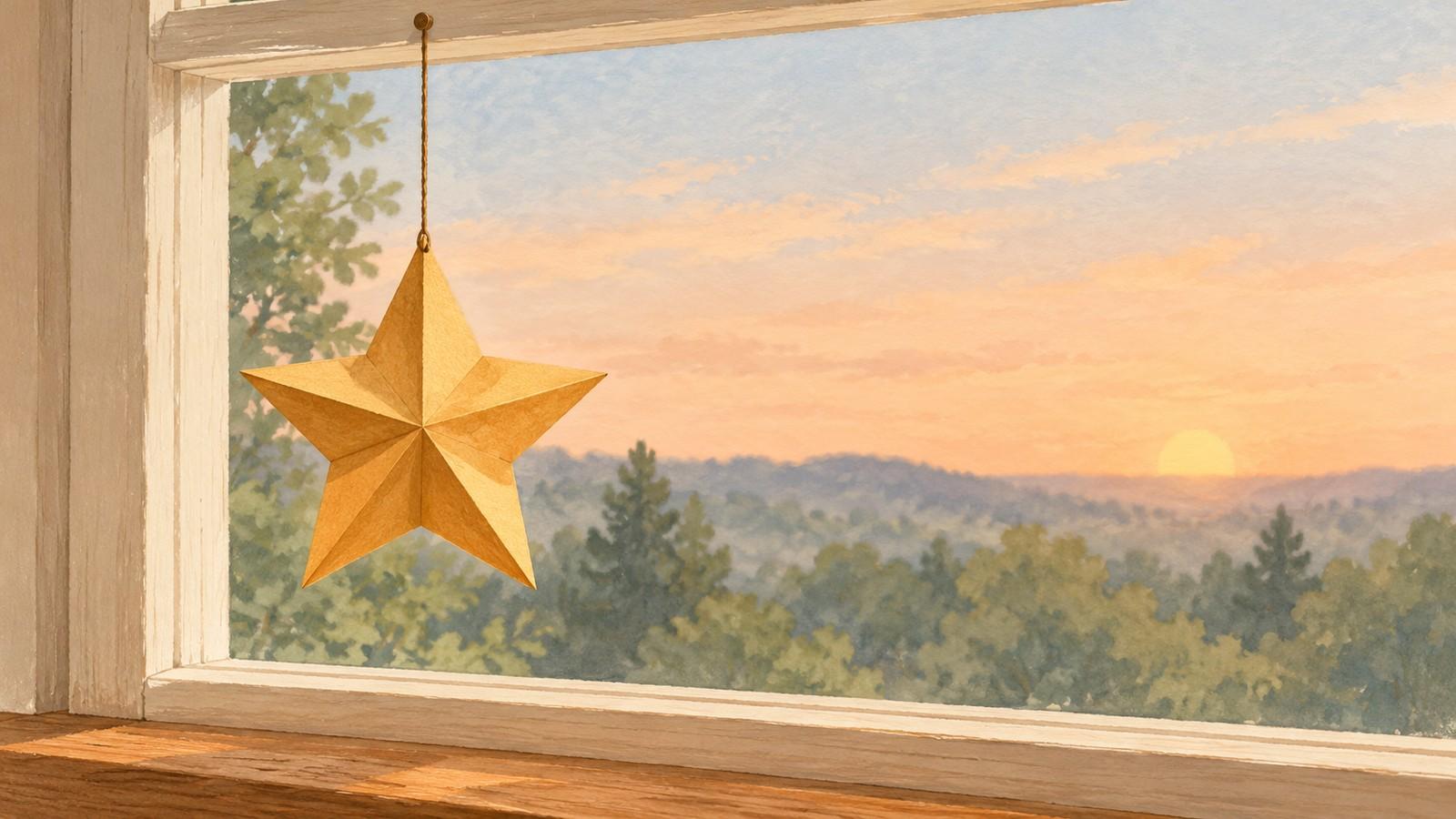
A Small Star in a Quiet Window: A Free Image-to-Video Generator, No Signup Required
A single paper star can give a quiet window a small moment of movement. This illustrated guide plans one gentle left-to-right swing, explains how to prepare compatible images and shows what to inspect
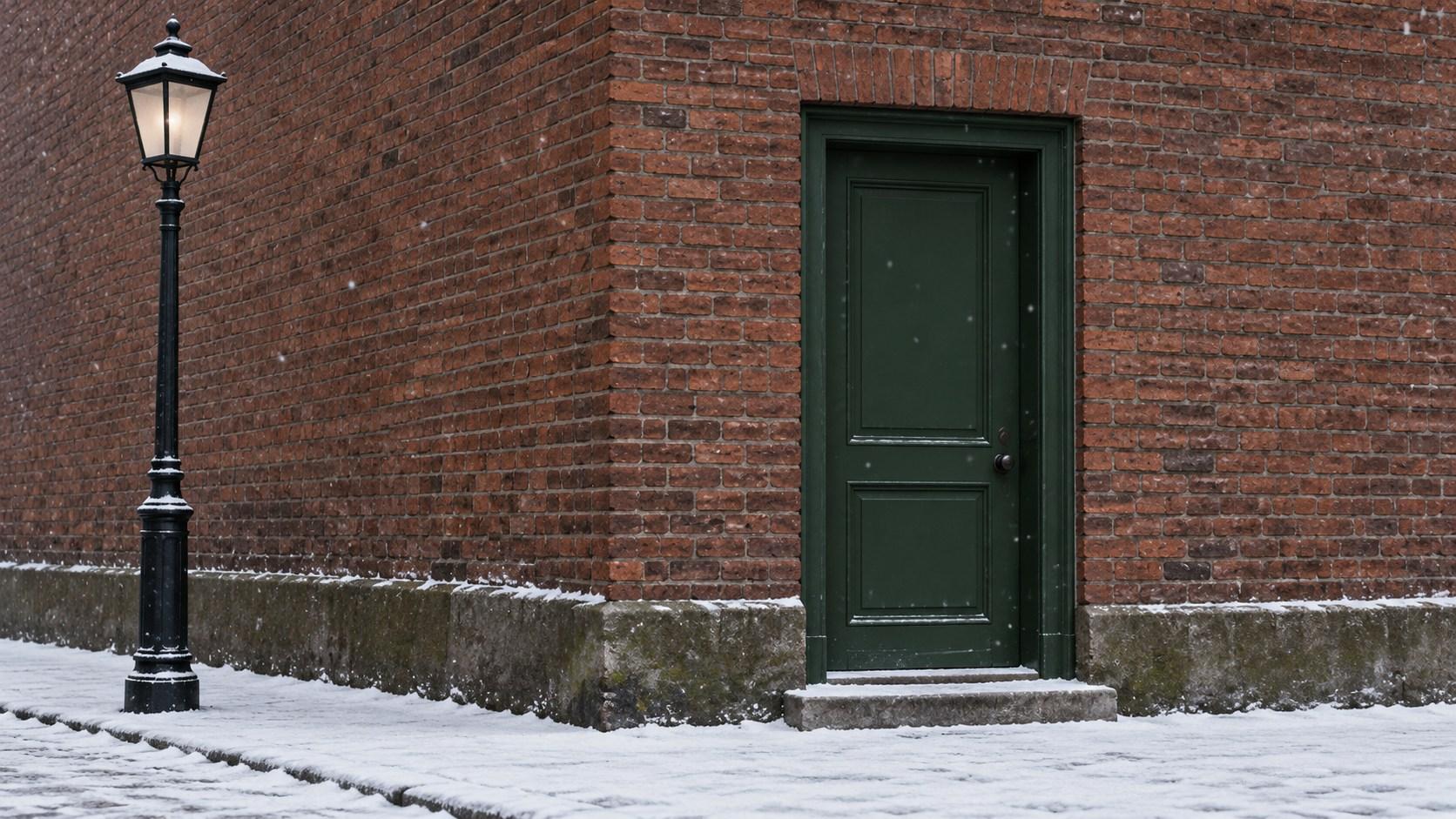
Let the Snow Fall a Little Longer in That Photo — A Free Image-to-Video Generator, No Signup Required
Give a snowy photo a little more time: prepare two matching frames, write a prompt for a few falling flakes, and check that the street stays still before adding your own words.
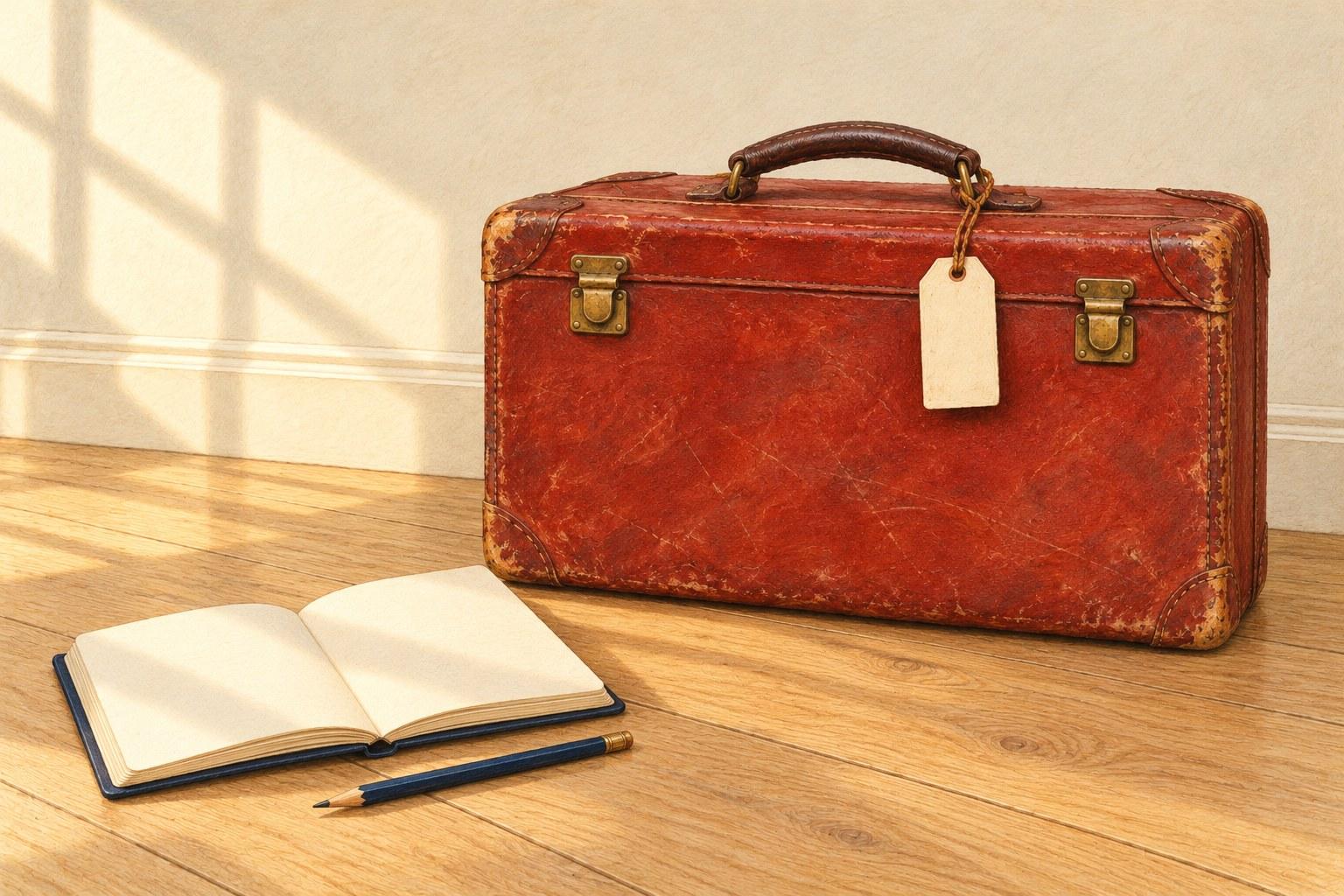
One Last Story for an Old Suitcase: Free UGC Video Generator, No Signup Required
Before an old object changes hands or returns to storage, give it a small, truthful story. Start with your own photograph, choose one memory you can stand behind, and explain what you want to do with